Disclosure: This article may contain affiliate links. We may earn a commission at no additional cost to you.
Table of Contents
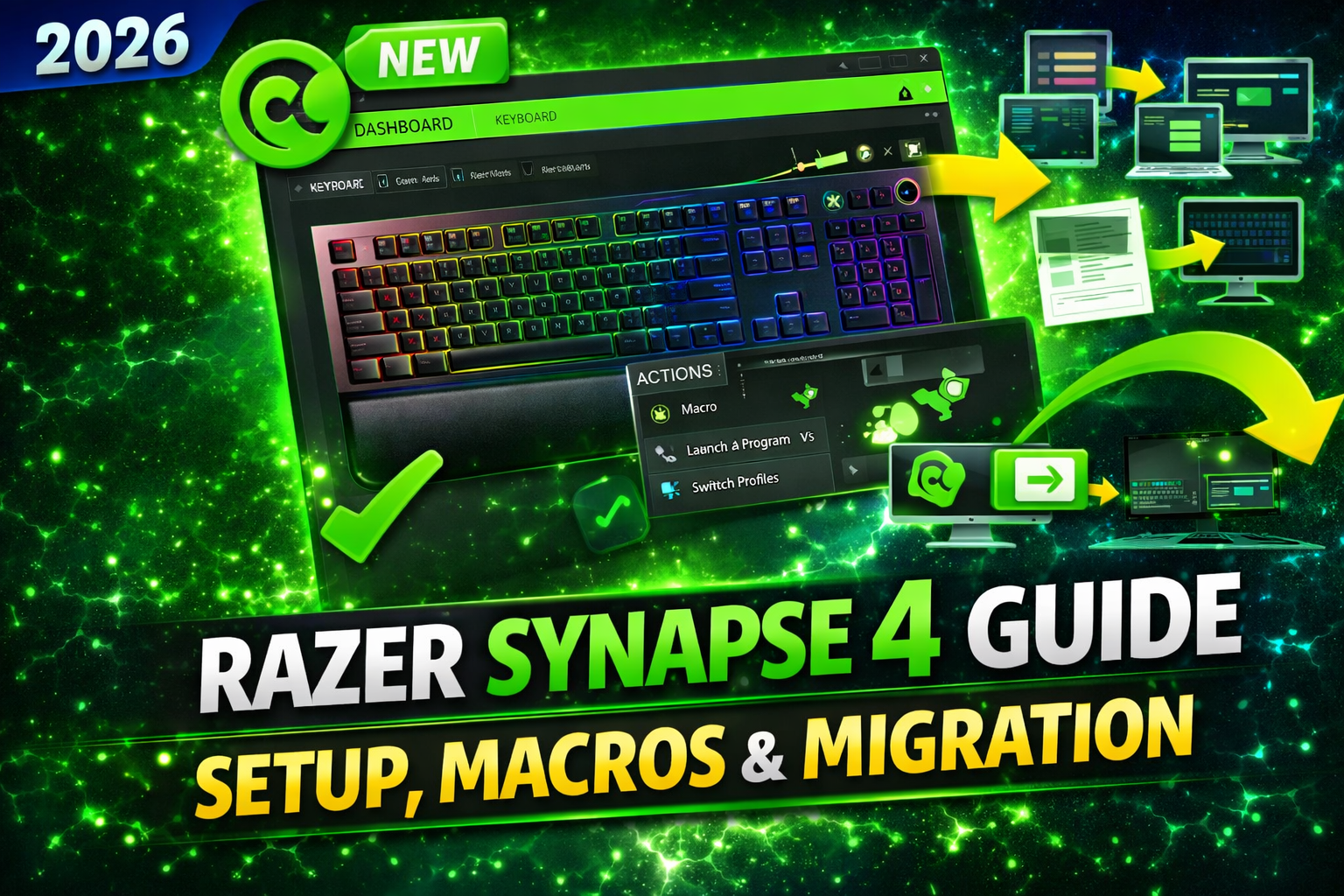
ToggleBest Razer Synapse Guide 2026: Setup, Macros & Synapse 4 Migration
If you own Razer gear, Razer Synapse is the software that unlocks its full potential. But in 2026, everything changed. As of February 3, 2026, Razer Synapse 3 no longer receives cloud services—meaning your profiles won’t sync across PCs unless you upgrade to Synapse 4 . This guide covers everything you need to know: how to install Synapse 4, migrate your old profiles, create macros, customize RGB, and fix common issues.
Quick Comparison: Razer Synapse Versions
| Feature | Razer Synapse 4 | Razer Synapse 3 |
|---|---|---|
| Release Status | Active, fully supported | End-of-life (no cloud services after Feb 3, 2026) |
| Performance | Up to 30% faster, multi-threaded architecture | Legacy performance |
| Cloud Sync | Yes | Disabled after Feb 3, 2026 |
| Profile Migration | Built-in tool | Requires manual export |
| Device Support | All Synapse 3 devices + newer models | Legacy devices only |
| On-the-Fly Macros | yes (requires app running) | Yes |
| Macro Creation | Easier interface per user feedback | More complex |
What’s New in Razer Synapse 4 (2026)
Razer completely rebuilt Synapse for 2026. Here’s what changed:
| Feature | What It Means for You |
|---|---|
| 30% Faster Performance | Multi-threaded architecture means less lag when switching profiles |
| Streamlined Interface | Faster navigation, fewer clicks to reach settings |
| Profile Migration Tool | One-click transfer of your old Synapse 3 profiles |
| Razer App Engine | Replaces Razer Central—no extra launcher needed |
| Offline Mode | Works without internet after first login |
| Linked Games | Auto-switch profiles when you launch specific games |
Critical Update: Synapse 3 cloud services ended February 3, 2026. If you haven’t migrated yet, your profiles are only on your local PC—and if you uninstall those devices, you lose them .
How to Install Razer Synapse 4
Step 1: Download the Installer
Go to the official Razer Synapse download page
Click “Download Now”
Make sure you’re downloading Synapse 4 (not the older version)
Step 2: Run the Installer
Launch the downloaded file
If User Account Control pops up, click “Yes”
Check “THE NEW RAZER SYNAPSE” and click “INSTALL”
Step 3: Let It Uninstall Synapse 3 Automatically
During installation, Synapse 3 will be removed automatically—no need to uninstall it manually
Installation takes a few minutes
Click “RESTART NOW” when prompted
Step 4: Log In and Start
After reboot, ensure “Launch Razer Synapse 4” is checked
Click “GET STARTED”
Log in with your Razer ID
System Requirements:
Windows 10 64-bit or Windows 11 64-bit only
Minimum screen resolution: 1024×720
Screen scaling under 350% (higher may break display)
How to Migrate Your Synapse 3 Profiles to Synapse 4
Important: Do NOT try to manually copy Synapse 3 profile files—the profile structure is completely redesigned and manual copying can cause issues . Use the official method:
Method 1: Profile Migration Tool (Recommended)
When you first launch Synapse 4 after installation, the Profile Migration Tool should appear automatically. Follow the prompts to transfer your existing profiles.
Method 2: Manual Migration (If Tool Fails)
If the migration tool didn’t work or you need to retrieve cloud data:
Step 1: Download your cloud data
Log in to your Razer ID at razer.com
Click “Account”, select “Privacy Center”
Request your Razer Synapse data
Check your email for the download link
Step 2: Extract the files
Download and extract the cloud profile data
Look for the “Synapse 3” folder
Step 3: Copy to local folder
Extract and copy the “Razer Synapse3 Data” folder
On your PC, go to
Paste the “Razer Synapse3 Data” folder
Copy the contents from “Synapse 3” folder into the “Emily3” folder
Note: This method is for retrieving profiles if you couldn’t migrate before the February 3 deadline .
How to Create Macros in Razer Synapse 4
Macros are automated sequences that turn a single button press into multiple actions—perfect for MMO combos or productivity shortcuts.
Step-by-Step Macro Creation
Step 1: Open Macro Module
Plug in your Razer device
Open Razer Synapse 4
Select “MACRO” from the menu
Step 2: Create New Macro
Click “New Macro”
By default, it’s named “Macro 1″—rename it by clicking on the name and selecting “Rename”
Step 3: Record Your Actions
Click the dropdown next to “RECORD” to adjust settings:
Record Delay: Set whether to record timing between keystrokes
Record Mouse Movement: Choose how cursor movement is captured
If you select “Record Delay,” there’s a countdown before recording starts
Click “RECORD” and perform your keystrokes or mouse actions
Click “STOP” when finished
Click “SAVE” to save the macro
How to Assign Macros to Keys
Step 1: Select Your Device
Open Synapse 4 and select your device from the DASHBOARD
Step 2: Choose a Key or Button
Click on the key or button you want to assign
Note: Some keys cannot be remapped, like “Windows” and “FN”
Step 3: Assign the Macro
In the assignment menu, select “MACRO”
Choose the macro you created from the list
On-the-Fly Macro Recording
You can record macros without opening the software:
Press the macro recording key (varies by device) to start
The LED will stay lit while recording
If the LED blinks three times and turns off, Synapse 4 isn’t running in the background—keep it open
Note: On-the-Fly Macro Recording requires Synapse 4 running in the background (system tray icon visible) .
How to Customize RGB Lighting in Synapse 4
Step 1: Open Lighting Settings
Launch Razer Synapse 4
Select your device from the dashboard
Click “LIGHTING”
Step 2: Choose Effect Type
Quick Effects: Pre-made lighting effects (breathing, spectrum cycling, static, etc.)
Advanced Effects: Customize individual zones or create layered effects
Chroma Studio: Full control for advanced users
Step 3: Adjust Settings
Customize color, speed, brightness
Link effects to games using “LINKED GAMES” module
How to Set Up Linked Games (Auto Profile Switching)
Linked Games automatically switches your device profiles when you launch specific games.
Step 1: Enable the Module
In Synapse 4, click the “More” icon (three dots) in the upper right
Under “MODULES”, select “LINKED GAMES”
Step 2: Link a Game
Select any game from the list
Click the Razer device or Chroma Effect you want to link
The profile will activate automatically when that game launches
Note: Non-game applications (browsers, media players, productivity software) can be added, but Synapse won’t monitor telemetry for them—it’s designed for real games only .
How to Fix Common Razer Synapse Issues
Synapse Won’t Open or Crashes
Check display scaling: Minimum resolution 1024×720, scaling under 350%
Run as administrator: Right-click the shortcut, select “Run as administrator”
Reinstall: Uninstall Synapse 4 first, then download fresh installer
Synapse Not Detecting Device
Ensure your device is supported—Synapse 4 supports all Synapse 3 devices
Try a different USB port
Restart your PC
Check for device-specific drivers
Macro Recording Not Working
Make sure Synapse 4 is running in the background (system tray icon visible)
If LED blinks three times and turns off, the app isn’t running—launch it
Synapse 3 Profiles Won’t Migrate
Use the Profile Migration Tool in Synapse 4—do NOT manually copy files
If tool fails, follow the manual cloud data retrieval steps above
Can I Run Synapse 3 and 4 Together?
No. Running both versions concurrently is not recommended due to conflicting configuration issues. Install Synapse 4 and let it automatically remove Synapse 3 .
Can I Go Back to Synapse 3?
Yes. Uninstall Synapse 4 first, then download and install Synapse 3 . But remember: cloud services are disabled—your profiles will only exist on that local PC .
Buyer’s Guide: Which Synapse Should You Use in 2026?
| Your Situation | Recommended Version |
|---|---|
| New Razer device (2025-2026 models) | Synapse 4—some newer devices may not work with Synapse 3 |
| Multiple gaming PCs | Synapse 4—cloud sync still works |
| Legacy devices only (pre-2020) | Synapse 3 still works locally, but no cloud |
| Tartarus / macro-heavy setup | Mixed feedback—some prefer Synapse 3 for macro stability, others find Synapse 4 easier |
| Minimalist user (just DPI/RGB) | Synapse 4 has cleaner interface |
Real User Feedback from Razer Insider:
“Due to the numerous bugs, and issues with Synapse 4, I have ‘downgraded’ to Synapse 3 and it now is working perfectly.” — User with Tartarus Pro, Blackwidow Chroma V2, Basilisk V3
*”Synapse 4 has, in my opinion, easier Macro creation. Having said that I was able to re-create a Macro that I made in Synapse 4, as well as optimizing the Synapse 3 created one.”* — Sleuth
Frequently Asked Questions
Is Razer Synapse free?
Yes, Razer Synapse is completely free to download and use .
Do I need Razer Central to run Synapse 4?
No. Razer App Engine now launches Synapse 4 and Chroma apps—Razer Central is no longer required .
Does Synapse 4 work offline?
Yes. As long as you’ve logged in at least once, you can use Synapse 4 without an internet connection .
Will Synapse 4 work with my old Razer gear?
Yes. Synapse 4 supports all devices currently supported in Synapse 3 .
Can I sync profiles across multiple PCs?
Yes. Log into the same Razer ID on each PC. Go to Settings > Last Sync and click the refresh icon .
What’s the minimum screen resolution for Synapse 4?
1024×720. If your screen scaling exceeds 350%, the app may not display correctly .
Can I add Photoshop or other apps to Linked Games?
Yes, you can add non-game applications, but Synapse won’t monitor events or telemetry—it’s designed for gaming use cases only .
How do I check for updates in Synapse 4?
Click the Settings icon (gear), then click “CHECK FOR UPDATES” .
Final Verdict
| Your Priority | Recommendation |
|---|---|
| Best performance | Synapse 4 (30% faster, modern interface) |
| Multiple PC setups | Synapse 4 (cloud sync active) |
| Macro-heavy use | Test both—some prefer Synapse 3 for stability, others find Synapse 4 easier |
| New devices (2025-2026) | Synapse 4 required for full support |
Razer Synapse 4 represents a significant upgrade in 2026—faster, cleaner, and better architected for modern gaming. The critical shift is the February 3, 2026 end-of-cloud for Synapse 3. If you haven’t migrated yet, do it now to keep your profiles safe.
The macro interface takes some getting used to, but once mastered, it’s powerful enough for anything from MMO combos to productivity shortcuts. Whether you’re a competitive gamer or just want your RGB to match your game, Synapse 4 is the tool you need.
If you’re using Logitech gear alongside Razer, our Logitech G Hub guide covers software setup for your Logitech peripherals