Disclosure: This article may contain affiliate links. We may earn a commission at no additional cost to you.
Table of Contents
ToggleLogitech G HUB Guide 2026: Download, Setup, Macros & Fixes
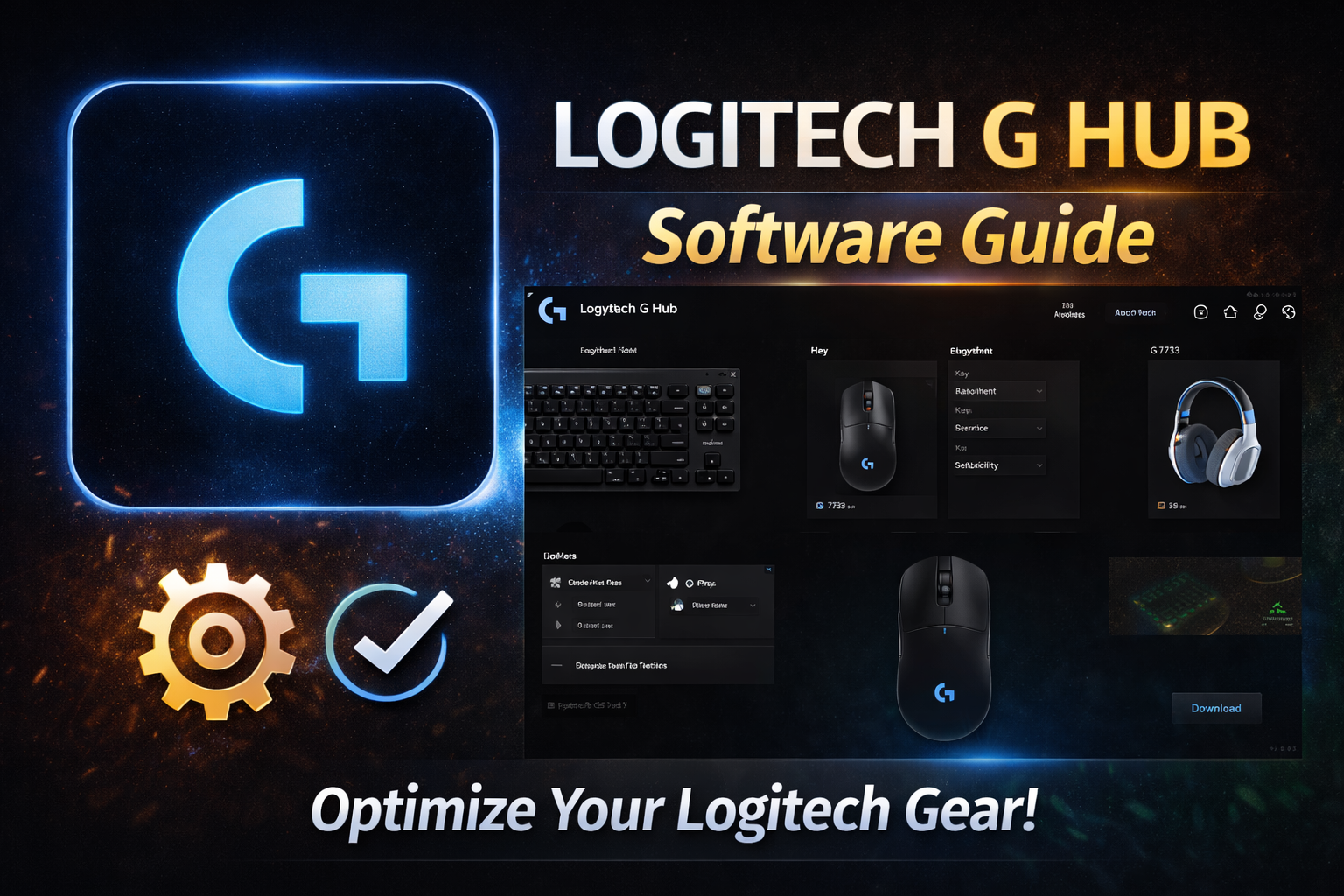
If you own a Logitech gaming mouse, keyboard, or headset, Logitech G HUB is the software that unlocks its full potential. But Logitech offers more than just G HUB—their Logitech software ecosystem includes Options+ for productivity users and Logi Bolt for business peripherals. This guide focuses specifically on G HUB, the essential Logitech software for gamers, covering everything from download to advanced macro programming and troubleshooting the latest 2026 updates.
Quick Comparison: Logitech Software Options
| Software | Best For | Key Features | 2026 Updates |
|---|---|---|---|
| Logitech G HUB | Gamers (G-series peripherals) | Per-game profiles, macro programming, LIGHTSYNC RGB, BLUE VO!CE | Full support for Call of Duty: Black Ops 7, EA SPORTS FC™ 26, Football Manager 26 |
| Logitech Options+ | Productivity (MX Master, MX Mechanical) | Flow multi-device control, Smart Actions, AI prompts | Haptic Sense Panel integration, Actions Ring shortcuts |
| Logi Bolt | Business users | Secure wireless connection, IT-managed deployments | Enhanced enterprise security features |
Logitech G HUB: Key Features at a Glance
| Feature | What It Does | Best For |
|---|---|---|
| Profile Management | Create per-game profiles that auto-switch | Gamers with different setups for each game |
| DPI & Sensitivity | Adjust DPI in 50-DPI increments, per-profile | Fine-tuning aim in FPS games |
| Macro Programming | Record and assign complex sequences | MMO players, productivity power users |
| BLUE VO!CE | Real-time voice filters and EQ | Streamers and Discord users |
| LIGHTSYNC RGB | Customize lighting per game or app | Personalizing your setup |
| Onboard Memory | Save profiles directly to your device | Using settings without running G HUB |
How to Download and Install Logitech G HUB
The safest and most reliable download source is the official Logitech website. This Logitech software is regularly updated to support new games and fix bugs.
Step 1: Download the Installer
Visit the official Logitech G HUB download page and select the version for your operating system (Windows or macOS). The current version as of February 2026 is 2026.1.828335 for Windows and 2026.1.829723 for macOS. For Windows users, you can also install it via the command line using winget install --id=Logitech.GHUB -e.
Step 2: Run the Installer
Windows: Double-click the downloaded
.exefile and follow the on-screen instructions.macOS: Double-click the
.dmgfile, then drag the G HUB icon into your Applications folder.
Step 3: Launch and Update
Open G HUB. It will check for updates and download any necessary components automatically. If you encounter any issues, particularly on macOS, refer to the troubleshooting section below.
Initial Setup: Creating Your First Profile
Once installed, G HUB will detect all compatible Logitech G devices. The home screen displays your gear, making this Logitech software feel intuitive from the start.
Creating a Game-Specific Profile
Click on your device (e.g., your mouse).
Navigate to the Assignments or Profiles tab.
Click “Create New Profile” and name it after a specific game (e.g., “Valorant,” “Call of Duty: Black Ops 7”). G HUB now supports new titles like Call of Duty®: Black Ops 7, EA SPORTS FC™ 26, and Football Manager 26 out of the box.
G HUB can auto-detect when you launch a game and switch to its profile, ensuring you always have the right settings at your fingertips.
Mastering DPI and Sensitivity Settings
Fine-tuning your DPI is crucial for accuracy. In G HUB, you can set multiple DPI levels per profile. This is one of the most-used features in any Logitech software for gaming.
Select your mouse and go to the Sensitivity (DPI) tab.
Drag the sliders to set your desired DPI values (anywhere from 100 to over 25,000, depending on your mouse). You can often set increments as small as 50 DPI.
Assign these levels to the DPI cycle button on your mouse. This allows you to switch between, for example, 400 DPI for sniping and 1600 DPI for general navigation.
Many Logitech G mice also feature onboard memory. In the device settings, you can enable this to store your profiles directly on the mouse. This means your settings will work even on another PC without G HUB running in the background.
The Ultimate Guide to Creating Advanced Macros
Macros are automated sequences that can turn a single button press into a complex chain of commands. In G HUB, you can create them for both keyboards and mice. This Logitech software feature alone is why many gamers choose Logitech.
Step-by-Step: Creating a Keyboard Macro
Go to your keyboard’s Assignments tab and select the Macros section.
Click “Create New Macro,” give it a name (e.g., “Discord Mute”), and choose a type:
No Repeat: Executes once per press.
Repeat During Press: Loops while you hold the button down.
Alternate: Starts on first press, stops on second press.
Sequence: Different actions for press, hold, and release.
Start recording. You can record actual keystrokes, insert text, launch an application, or add delays.
Once recorded, drag the macro from the list onto the specific key you want to trigger it. Now, pressing that key will execute your entire sequence.
Real-World Macro Examples
For Gamers: Create a complex building combo in Fortnite or a skill rotation in an MMO with perfect timing.
For Creators: In FL Studio or Adobe Premiere, assign a side mouse button to a frequently used menu command.
For Everyday Use: Program a key to type your email address or a common response instantly. A very popular macro is setting a mouse button to simulate the middle-click (scroll wheel press) for easier navigation in 3D software.
Troubleshooting: Fixing Common G HUB Issues
Like any Logitech software, G HUB occasionally runs into problems. Here’s how to fix the most common ones in 2026.
The January 2026 macOS Certificate Fix
In early January 2026, many macOS users found that G HUB and Logi Options+ would not open. This was caused by an expired security certificate. The issue has been fixed, but the update is manual.
If G HUB won’t launch on your Mac, here’s the fix:
Do NOT uninstall your current G HUB app. Uninstalling will erase your custom settings.
Download the official patch installer for G HUB from the Logitech support page.
Double-click the downloaded file and grant administrator access when prompted.
When the installer says “software already exists,” you can exit it.
Now, manually open G HUB from your Applications folder. Your devices and all your custom profiles should be fully restored.
This fix is for macOS 26 Tahoe, 15 Sequoia, 14 Sonoma, and 13 Ventura. If you are on macOS 12 Monterey, Logitech has a dedicated “Logi Certificate Patch” tool available on their support site.
Other Common Problems
| Problem | Likely Solution |
|---|---|
| G HUB stuck on spinning logo | Try restarting your computer. If that fails, download the latest installer fresh from Logitech in an incognito browser window and run it. |
| G HUB hogging CPU/RAM | Check for a memory leak. The latest update (2026.1) fixed a leak related to the Discord global dimming feature. Make sure you’re up to date. |
| Settings not saving to device | Ensure your mouse or keyboard has onboard memory. In G HUB device settings, look for an option to “Enable Onboard Memory” and then save your profile to it. |
| Frequent logouts from Logi account | This bug was fixed in the February 3, 2026 update (2026.1). Update G HUB to the latest version. |
Logitech G HUB vs Other Logitech Software: Which Do You Need?
Logitech offers several software options depending on your devices. Understanding the difference helps you avoid downloading the wrong Logitech software.
| Software | Compatible Devices | Key Difference |
|---|---|---|
| G HUB | G-series gaming mice, keyboards, headsets | Gaming-focused: per-game profiles, macros, LIGHTSYNC |
| Options+ | MX Master series, MX Mechanical, Lift, Pebble | Productivity-focused: Flow, Smart Actions, AI prompts |
| Logi Bolt | Bolt-compatible business peripherals | IT-managed, enterprise security |
If you own a gaming mouse like the G502 X or G Pro X Superlight, you need G HUB. If you own an MX Master 4 for work, you need Options+. Some users with both gaming and productivity devices need both pieces of Logitech software—and they can run side by side without conflict.
Advanced Features You Might Have Missed
BLUE VO!CE for Headsets: If you have a compatible Logitech G headset, G HUB gives you access to BLUE VO!CE technology. This isn’t just a simple EQ; it provides professional broadcast-quality filters like noise reduction, de-essers, and voice modifiers to make you sound crystal clear.
PLAYSYNC for Multi-Platform Gaming: For headsets like the G series, PLAYSYNC allows you to connect to up to three gaming systems (PC, Xbox, PlayStation) simultaneously and switch between them with a single button press.
Browse Community Profiles: Don’t want to build from scratch? G HUB has a “Browse” section where you can find and download profiles shared by other users and even some professional esports players.
Frequently Asked Questions
Is Logitech G HUB safe to download?
Yes, always download it directly from the official Logitech website (logitech.com) to ensure you’re getting a safe, up-to-date version free from malware.
Will G HUB slow down my PC?
Generally, no. The impact on system resources is minimal. The latest versions have also fixed previous memory leak issues, making it more efficient than ever.
Can I use G HUB on Linux?
Logitech G HUB is not officially supported on Linux. However, many users have success running it through compatibility layers like Wine or Lutris. For basic configuration of mice and keyboards on Linux, the open-source tool Solaar is an excellent alternative.
Do I need G HUB running all the time?
No. If your Logitech device has onboard memory, you can configure your profiles and macros in G HUB, save them to the device, and then close the software. Your settings will stay with the device wherever you plug it in.
Why is my Logitech G HUB not detecting my device?
First, try a different USB port or restarting your computer. Ensure your device is from the Logitech G series and is fully compatible. If it’s a newer model, you may need to update G HUB to the latest version to add support for it.
What’s the difference between G HUB and Logitech Options+?
G HUB is for gaming peripherals (G-series) with features like per-game profiles and macro programming. Options+ is for productivity mice (MX Master series) with features like Flow multi-device control and Smart Actions. Some users need both pieces of Logitech software.
For a broader look at how Logitech stacks against its biggest competitor, read our Logitech vs Razer guide .
For a broader look at how Logitech stacks against its biggest competitor, read our Logitech vs Razer guide .